If you get paid in British pounds on PayPal, you can’t send that money straight to a US bank as pounds. It has to become US dollars first. Around 94% of my Prolific earnings came in GBP, so I’ve converted over £500 this way.
There are two ways to do it, and both give you the same exchange rate. Here’s how each one works on the web and in the mobile app, plus what PayPal actually charges.
Table of Contents
Why I need to convert currency on PayPal
Most studies on Prolific pay in GBP, and Prolific pays out through PayPal. My US bank only accepts dollars, so every time I cash out, I convert the pounds to USD before the money reaches my bank.
Which method should you use?
| Method 1: Convert in Wallet | Method 2: Withdraw to bank | |
|---|---|---|
| What happens | GBP becomes USD inside PayPal | PayPal converts as it sends to your bank |
| Exchange rate (my test) | £1 = $1.2809 | £1 = $1.2809 |
| £7.68 became | $9.84 | $9.84 (standard) |
| Best for | Keeping USD in PayPal to spend or send | Getting money into your bank |
Short answer: if the money is going to your bank anyway, Method 2 is faster, with fewer steps and the same rate. Use Method 1 if you want the dollars to stay in PayPal.
Method 1: Convert your balance in the PayPal Wallet
On the web (easiest)
Step 1: Click Wallet in the top menu.

Step 2: Find your GBP balance and click the three dots next to it.
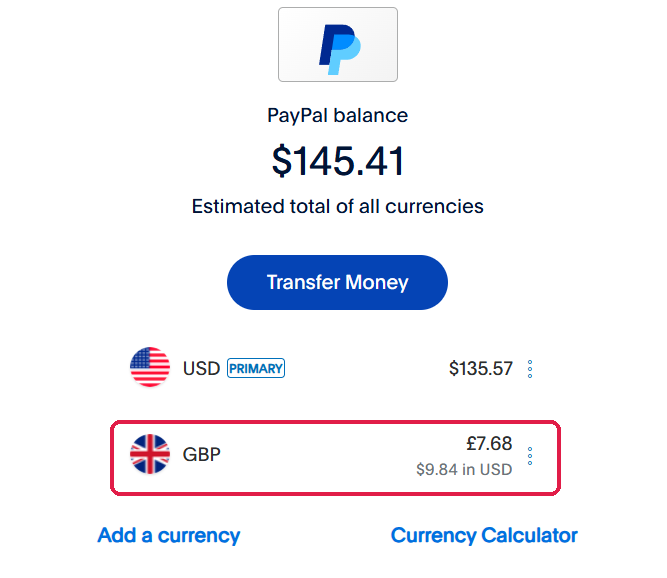
Step 3: Click Convert currency.
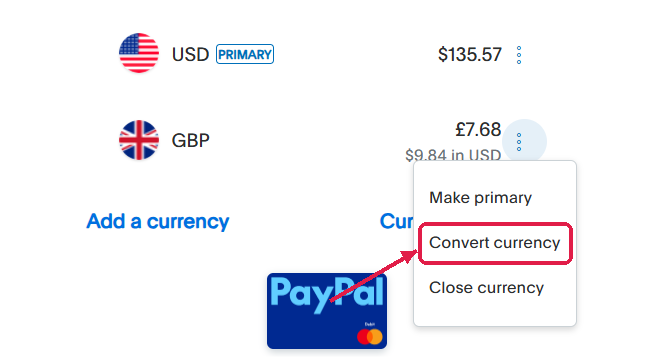
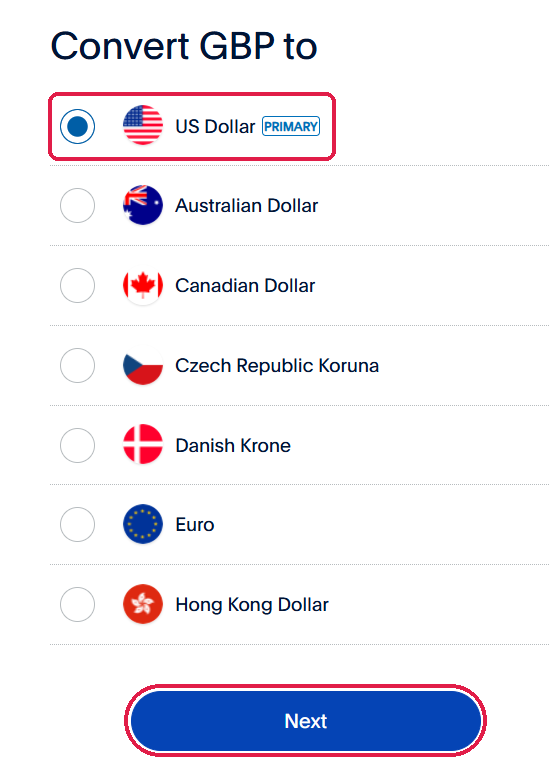
Step 4: Select US Dollar, then click Next.
Step 5: Enter the amount you want to convert, then click Next.
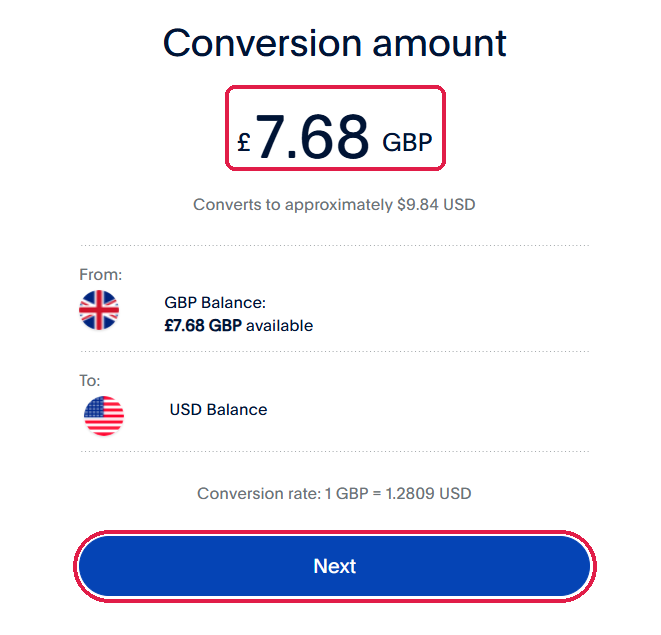
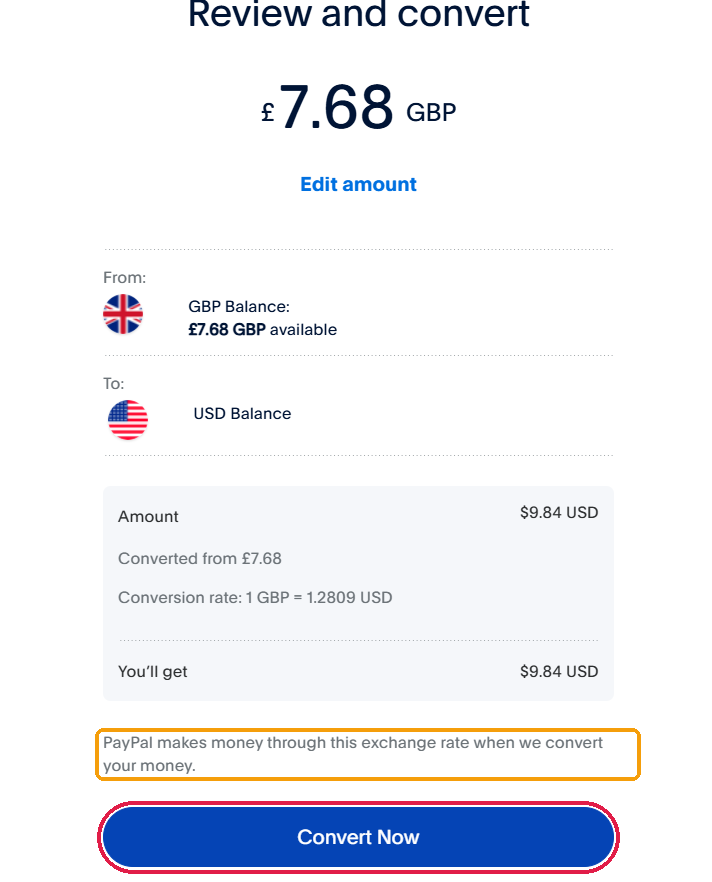
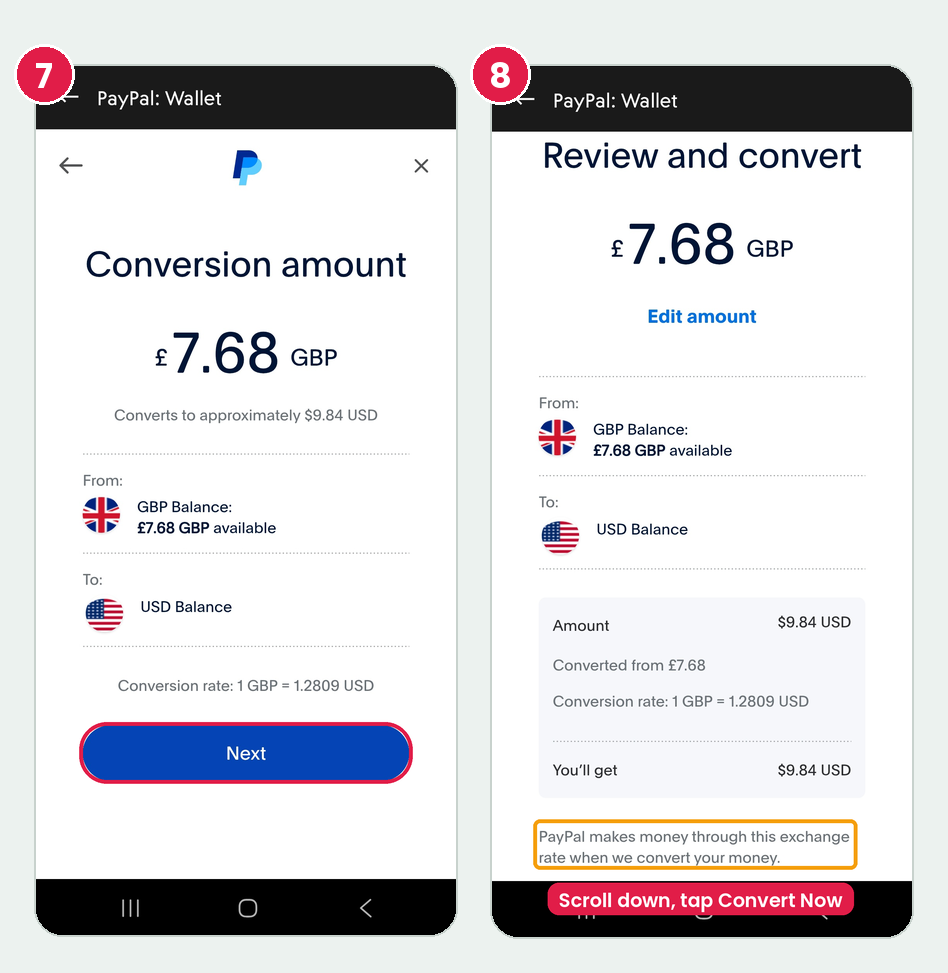
Step 6: Review the rate and click Convert Now. Note the line at the bottom: “PayPal makes money through this exchange rate.”
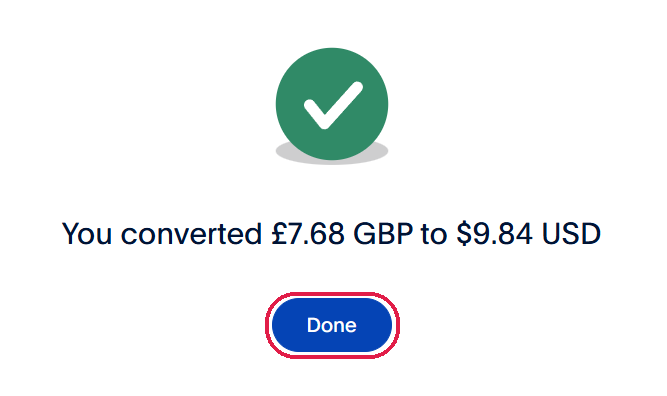
Step 7: Click Done.
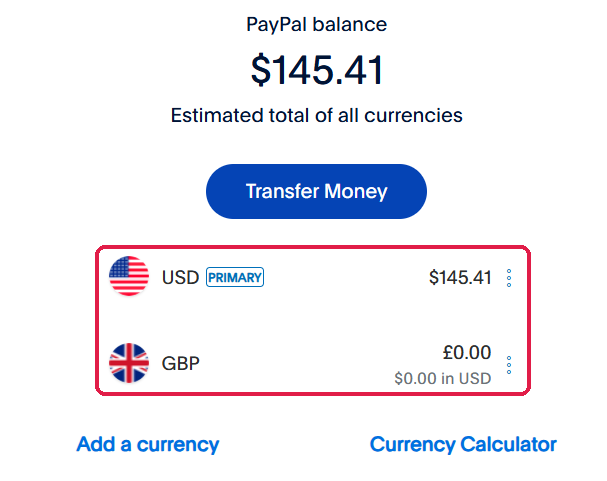
Step 8: Your GBP balance is now $0.00, and the dollars are added to your USD balance.
On the mobile app (harder)
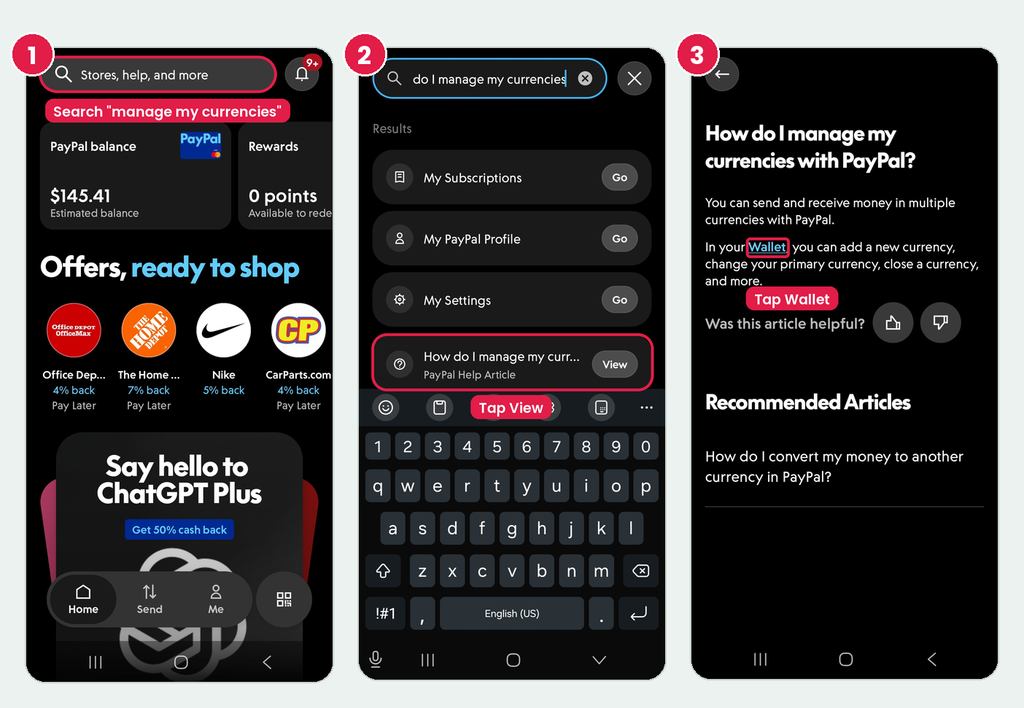
The PayPal app doesn’t have an obvious convert button. The easiest way I found is through the help search:
Step 1: Tap the search bar and type “How do I manage my currencies with PayPal?”
Step 2: Tap View on the help article “How do I manage my currencies with PayPal?”
Step 3: Tap the Wallet link in the article. This opens the same Wallet page as the website.
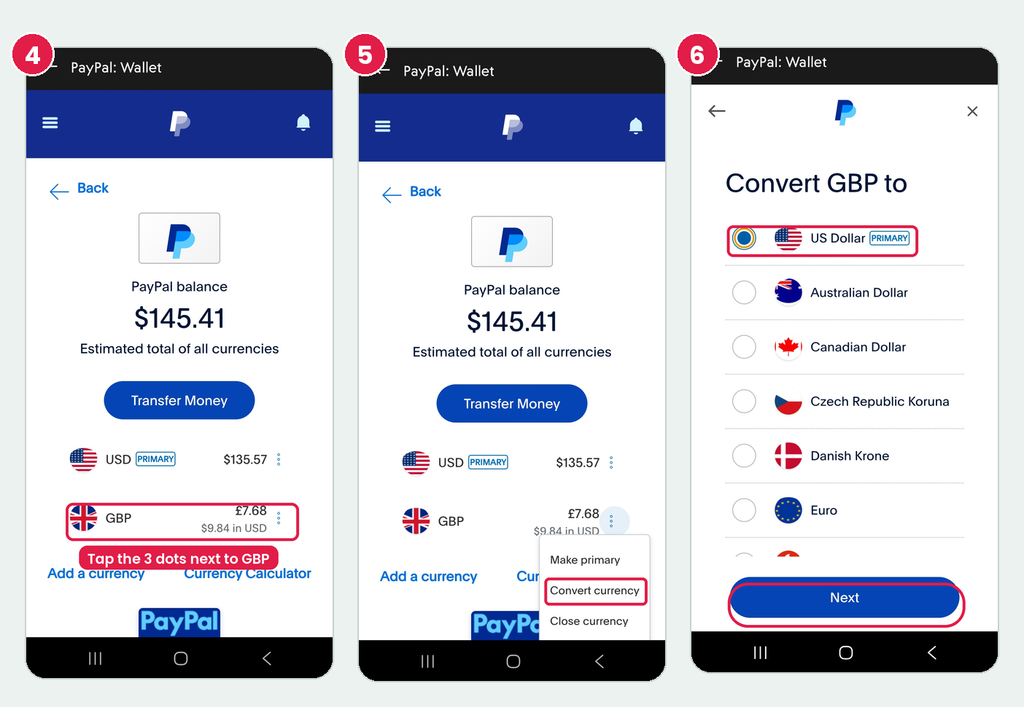
Step 4: Tap the three dots next to GBP.
Step 5: Tap Convert currency.
Step 6: Select US Dollar and tap Next.
Step 7: Check the amount and tap Next.
Step 8: Scroll down and tap Convert Now.
If you have a computer nearby, use the web version. It takes fewer taps and no searching.
Method 2: Let PayPal convert it when you withdraw
On the web
Step 1: Go to Wallet and click Transfer Money.
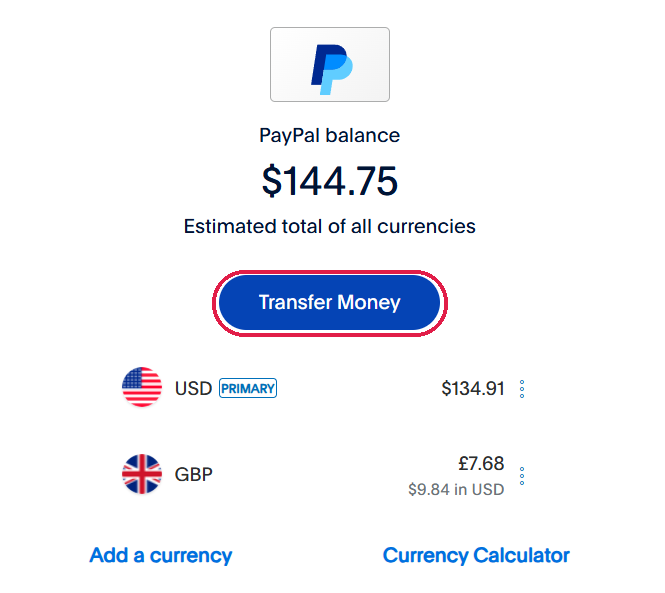
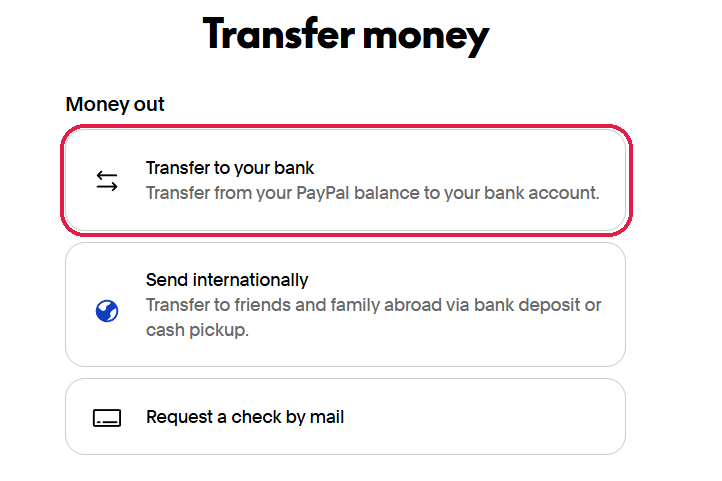
Step 2: Click Transfer to your bank.
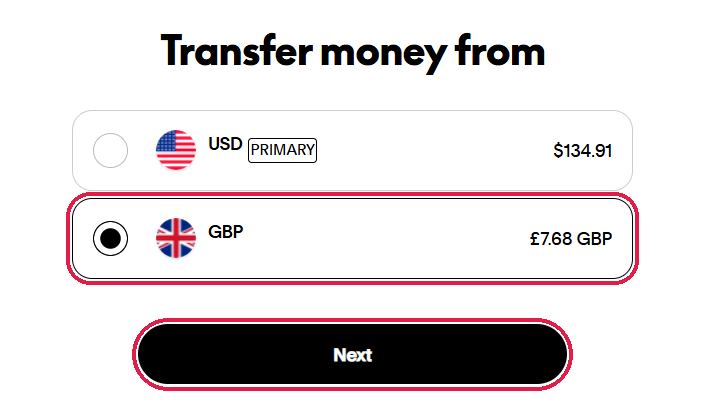
Step 3: Select your GBP balance and click Next.
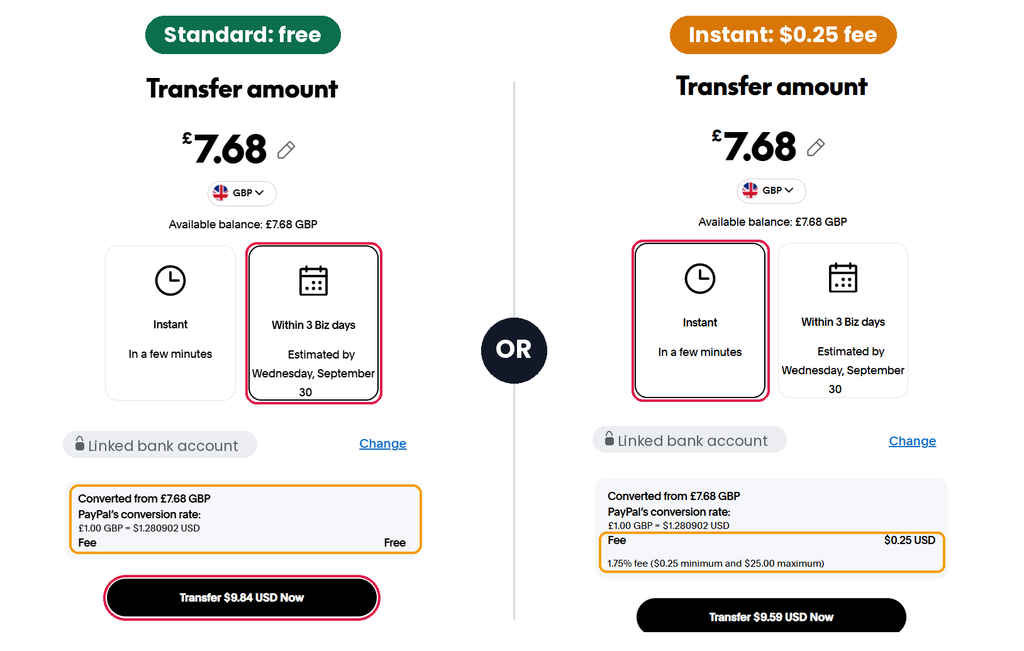
Step 4: Choose Within 3 Biz days (free) or Instant, then click Transfer. PayPal shows the conversion rate before you confirm.
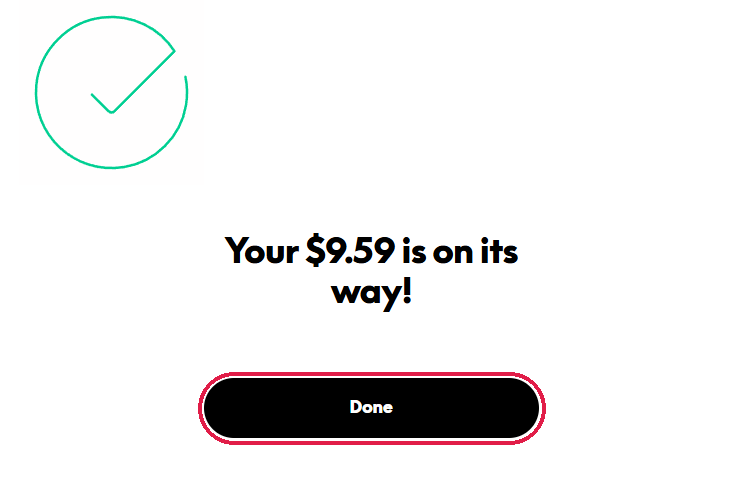
Step 5: Click Done.
On the mobile app
This method is just as easy on mobile:
Step 1: On the home screen, tap your PayPal balance.
Step 2: Tap Transfer.
Step 3: The amount screen opens in USD. Tap USD and switch it to GBP.
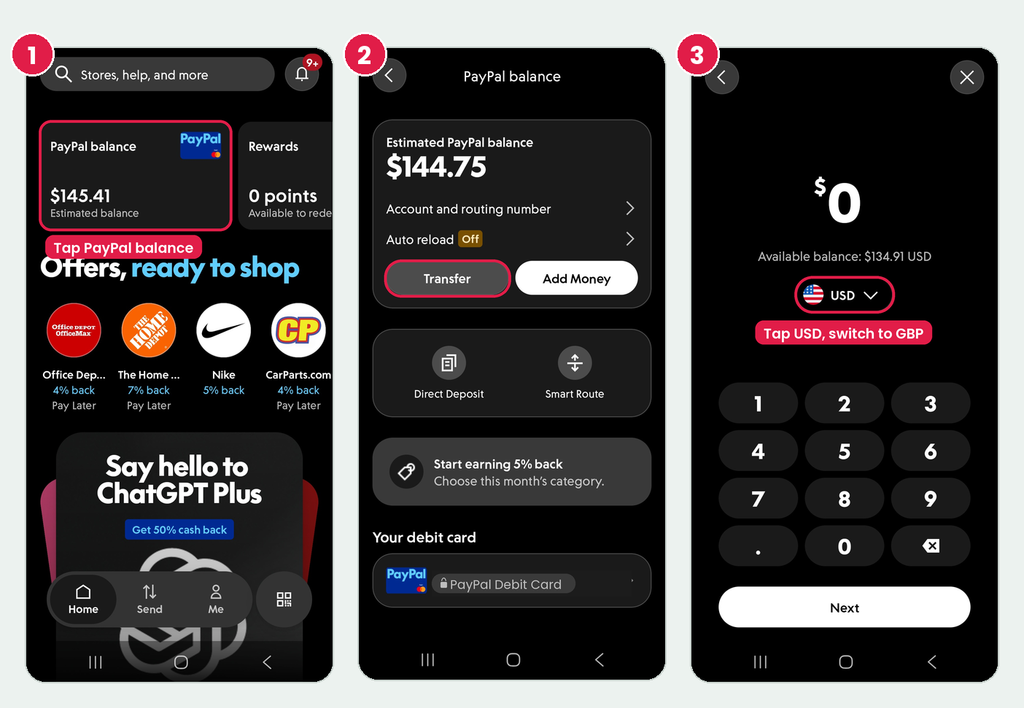
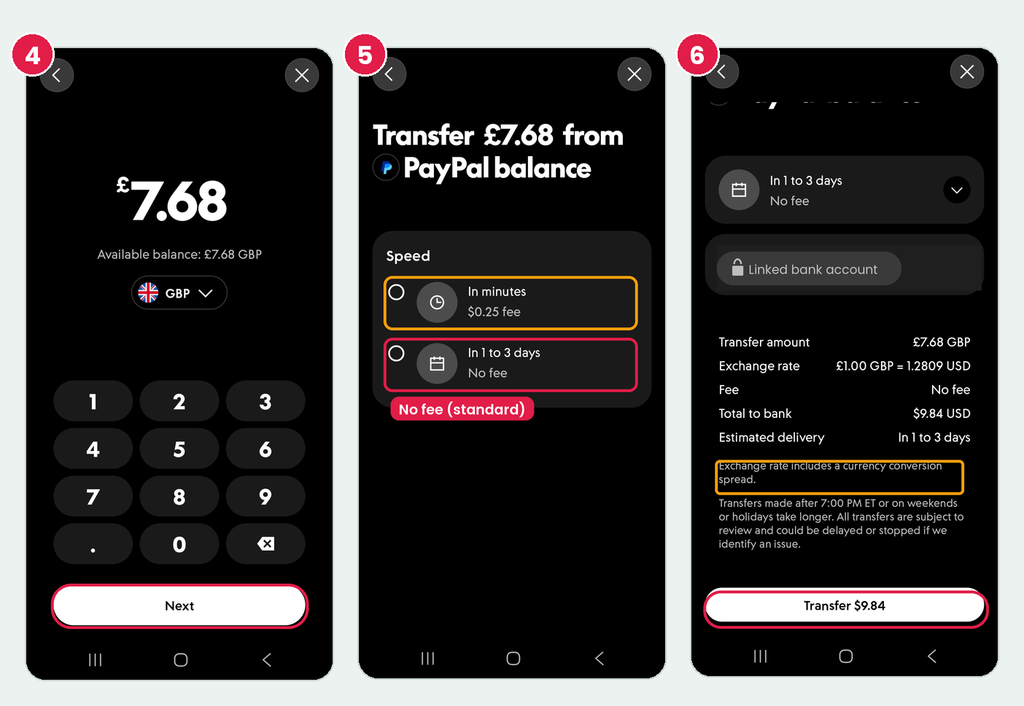
Step 4: Check the amount and tap Next.
Step 5: Choose In 1 to 3 days (no fee) or In minutes ($0.25 fee).
Step 6: Review the exchange rate and total, then tap Transfer.
How much does PayPal charge to convert currency?
PayPal doesn’t show a separate “conversion fee.” The cost is built into the exchange rate, which PayPal calls a currency conversion spread. According to PayPal’s consumer fees page:
- Converting your balance or withdrawing: 3.00% spread
- Paying for something, or sending money to someone, in a different currency: 4.00% spread
The 3% spread is the main cost, and you pay it with either method. On the roughly £574 I’ve earned on Prolific, that adds up to about $20 over the years. Small, but worth knowing.
Tips to save money
- Skip Instant transfers for small amounts. The $0.25 minimum fee on my $9.84 transfer was 2.5% on top of the spread.
- Check the rate on the review screen before you confirm. PayPal shows it on both methods.
- Convert to USD before sending money to friends in the US. If you send GBP and they receive it as dollars, PayPal applies a 4% spread instead of 3%. Converting in your Wallet first (Method 1) and then sending USD keeps it at 3%, and sending USD to someone else in the US from your PayPal balance is free.
- Spend your balance with the PayPal Debit Card. After converting to USD, you don’t have to withdraw at all. I spend mine with the PayPal Debit Card and get 5% cash back on gas. Here’s my PayPal Debit Card review.
PayPal currency conversion FAQ
Does PayPal charge a fee to convert currency?
Not a separate fee. PayPal builds a 3% spread into the exchange rate when you convert your balance or withdraw.
Can I withdraw GBP to a US bank account?
No. A US bank account only receives US dollars. You can start the withdrawal from your GBP balance, but PayPal converts it to USD before it reaches your bank, at the same rate as converting in your Wallet.
Is it better to convert first or withdraw directly?
In my test, both gave the same rate and the same amount. Withdrawing directly takes fewer steps.
Why can’t I find the convert option in the PayPal app?
The app doesn’t show it on the main screens. Search “How do I manage my currencies with PayPal?” in the app, open the help article, and tap the Wallet link.
This isn’t financial advice, just my personal experience. PayPal’s rates and fees can change, so always check the review screen before you confirm.